Gestiona tu feed y resultados de mapeo
Comprende nuestro flujo de trabajo de integración asistida, cómo interpretar tus informes de mapeo en CSV y cómo enviar correcciones para mantener tus ofertas activas.
Gestiona tu feed y resultados de mapeo
The Comparator utiliza un flujo de trabajo de integración asistida y gestión operativa. En este momento no disponemos de un panel de autoservicio o inicio de sesión para tiendas.
Esta guía explica cómo interactúa tu tienda con nuestro equipo de integración, cómo leer tus informes de mapeo en CSV y cómo enviar correcciones.
1. Resumen del Flujo Operativo
Dado que el emparejamiento de hardware exige máxima precisión técnica, nuestro equipo de ingeniería gestiona el pipeline de ingesta.
[1. Enviar Feed] ➔ [2. Ingesta y Validación] ➔ [3. Informe CSV de Mapeo] ➔ [4. Enviar Correcciones] ➔ [5. Sincronización en Vivo]
- Enviar Solicitud y Feed: Envías la solicitud de tu tienda y la URL del feed mediante /retailers/apply/.
- Ingesta Inicial del Pipeline: Nuestro sistema descarga tu feed, valida las reglas de esquema e intenta emparejar las ofertas con nuestra base de datos de referencia (
ref_specs.json). - Recibir Informe CSV de Mapeo: Nuestro equipo te envía por correo electrónico un informe CSV con los artículos emparejados, ambiguos y rechazados.
- Revisar y Corregir: Revisas el CSV, actualizas los MPN/GTIN faltantes en tu catálogo o anotas las correcciones, y lo respondes a
[email protected]. - Publicación y Sincronización: Aplicamos tus correcciones a la configuración del pipeline (
corrections.json). Tus productos emparejados aparecen activos en las tablas de comparación.
2. Interfaz de Integración y Capturas
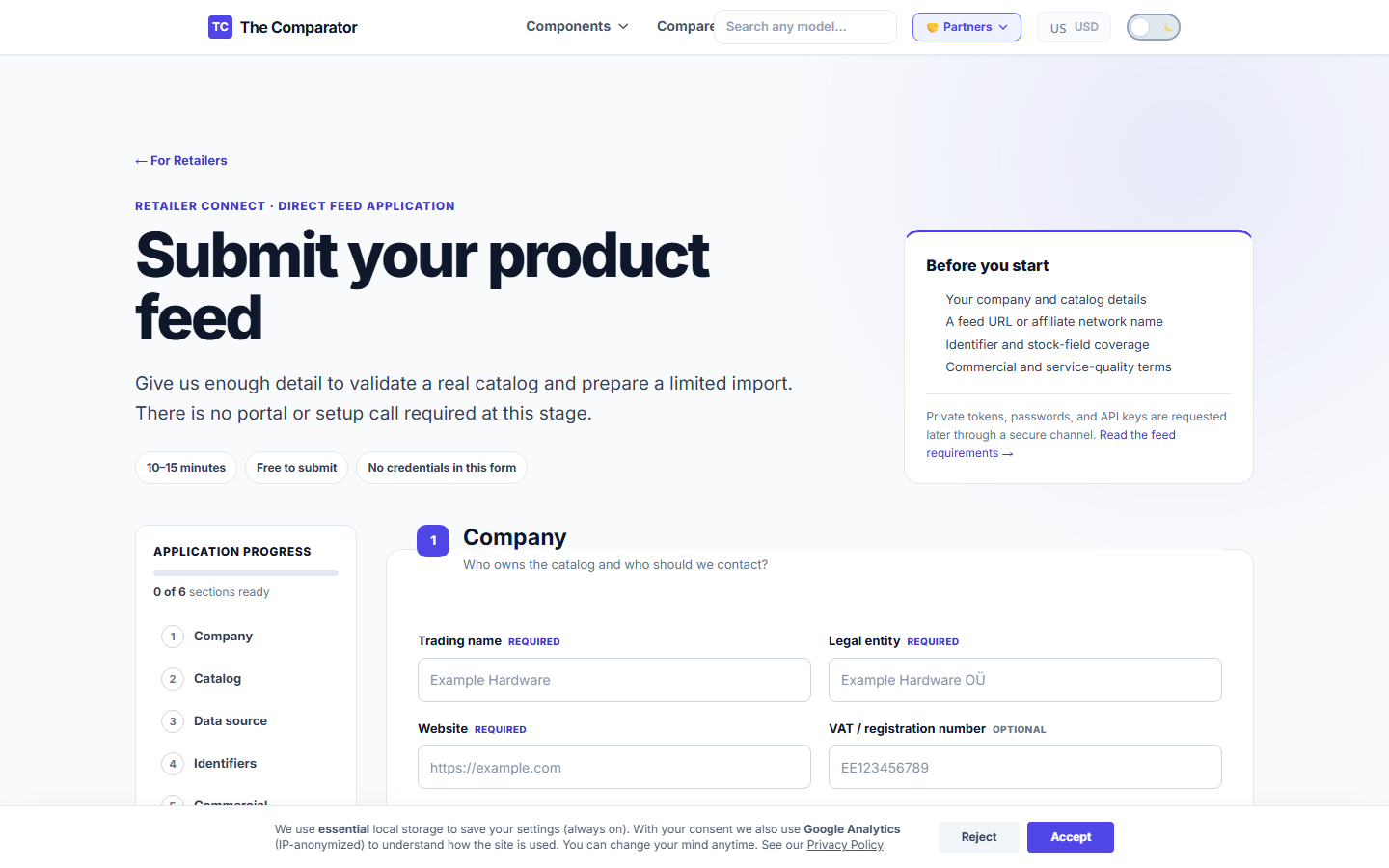
Interfaz de Solicitud de Tienda (/retailers/apply/)
Al registrar tu tienda, envías tus datos a través de nuestro formulario de solicitud de socios:
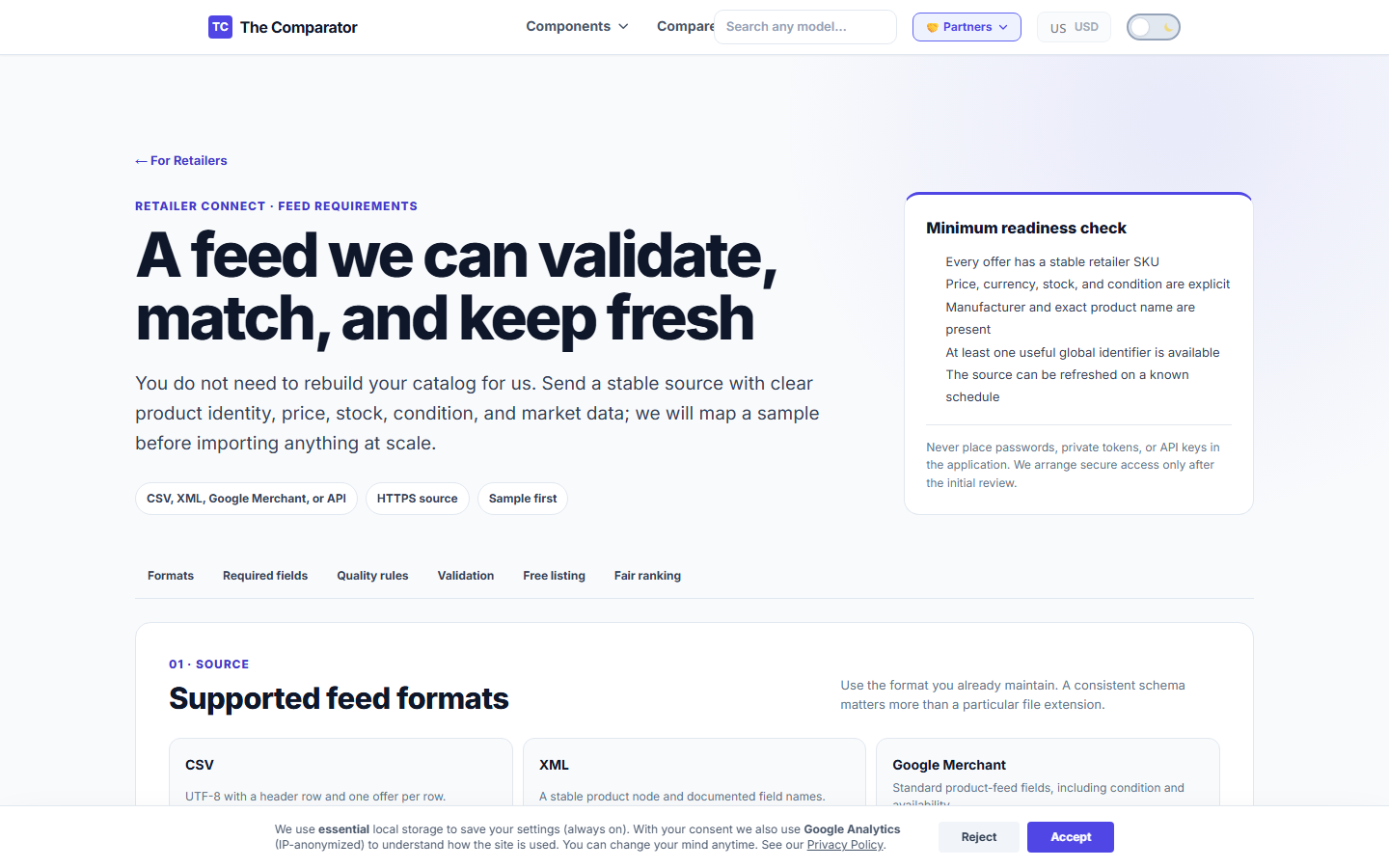
Referencia de Requisitos del Feed (/retailers/feed-requirements/)
Puedes consultar las directrices técnicas para formatos de feed en cualquier momento:
3. Interpretación del Informe de Mapeo (Formato CSV)
Tras procesar tu feed, nuestro equipo genera un Informe de Mapeo en formato CSV.
Estructura del Informe de Mapeo CSV
| Encabezado | Valor de Ejemplo | Descripción |
|---|---|---|
sku |
GPU-4070S-01 |
Tu identificador interno de producto (SKU). |
feed_title |
ASUS TUF Gaming GeForce RTX 4070 Ti SUPER OC 16GB |
Título original del producto en tu feed. |
matched_model |
NVIDIA GeForce RTX 4070 Ti SUPER |
Modelo canónico en la base de datos de The Comparator. |
status |
Matched |
Resultado del procesamiento (Matched, Ambiguous, Review, Rejected). |
issue_code |
NONE |
Código de diagnóstico para advertencias o rechazos. |
live_url |
https://thecomparator.tech/gpu/rtx-4070-ti-super/ |
Página de The Comparator donde se publica la oferta. |
4. Significado de Estados y Códigos de Diagnóstico
Definiciones de Estado de Mapeo
- ✅
Matched: El artículo fue identificado correctamente y emparejado con un modelo canónico. Se mostrará en vivo cuando estéin_stock. - ⚠️
Ambiguous: Nuestro algoritmo encontró varias coincidencias posibles (ej. no pudo distinguir entre versiones de 12GB y 16GB por un título impreciso). Requiere corrección manual. - 🔍
Review: La oferta fue marcada para revisión manual (ej. precio un 40% inferior a la media de mercado). Retenida hasta su comprobación. - ❌
Rejected: La oferta no puede importarse (ej. categoría no admitida o combo).
Códigos de Diagnóstico
NON_COMPONENT_ACCESSORY: El artículo es una caja de PC, bloque de agua o soporte. (Ignorado de forma segura por el importador).PRICE_ANOMALY: El precio está fuera de los rangos normales de hardware.ERR_NO_IDENTIFIER: El título es impreciso y no se proporcionó GTIN ni MPN.COMBO_OR_BUNDLE: El producto contiene varios componentes (rechazado por el filtroisComboListing).
5. Cómo Enviar Correcciones de Mapeo
Si un artículo fue marcado como Ambiguous o asignado al modelo incorrecto:
- Abre el informe CSV en Excel o Google Sheets.
- Añade una columna llamada
Correction. - Introduce el nombre canónico exacto del componente o su URL en The Comparator (ej.
https://thecomparator.tech/gpu/rtx-4070-super/). - Envía el CSV anotado a
[email protected]con el asuntoCorrecciones de Mapeo - [Nombre de tu Tienda].
Nuestro equipo aplica tus correcciones en un plazo de 24 horas, actualizando cpu_corrections.json o mobo_sata_corrections.json en el pipeline.
6. Notificación de Ofertas Incorrectas en Vivo
Si una oferta activa muestra un precio erróneo o enlaza a una página equivocada:
- Comprueba tu feed de origen para asegurarte de que el SKU y el precio son correctos.
- Envía un correo a
[email protected]con el asunto:URGENTE: Desajuste de Precio en Vivo - [Nombre de tu Tienda]. - Incluye el SKU, la URL activa errónea y el enlace correcto de la página de destino.
- Las incidencias urgentes se procesan en un plazo máximo de 4 horas.
Manage your feed and mapping results
The Comparator uses an assisted onboarding and operational management workflow. We do not operate a self-service merchant portal or login dashboard at this time.
This guide explains how your store interacts with our integration team, how to read your CSV Mapping Reports, and how to submit corrections.
1. Operational Workflow Overview
Because hardware matching requires strict technical accuracy, our engineering team manages the ingest pipeline.
[1. Submit Feed] ➔ [2. Ingestion & Validation] ➔ [3. CSV Mapping Report] ➔ [4. Submit Corrections] ➔ [5. Live Sync]
- Submit Application & Feed: You submit your store application and feed URL via /retailers/apply/.
- Initial Pipeline Ingestion: Our system fetches your feed, validates schema rules, and attempts matching against our hardware reference database (
ref_specs.json). - Receive CSV Mapping Report: Our integration team emails you a CSV report detailing matched, ambiguous, and rejected items.
- Review & Correct: You review the CSV, update missing MPNs/GTINs in your feed or annotate corrections, and email it back to
[email protected]. - Live Publication & Sync: We apply your mapping overrides to our pipeline configuration (
corrections.json). Your matched products appear live in the comparison tables.
2. Onboarding Interface & Screenshots
Retailer Application Interface (/retailers/apply/)
When you register your store, you submit your details through our partner application form:
Feed Requirements Reference (/retailers/feed-requirements/)
Technical guidelines for feed formats can be reviewed at any time:
3. Reading the Mapping Report (CSV Format)
When your feed is processed, our team generates a Mapping Report (CSV format).
Structure of the CSV Mapping Report
| Header | Example Value | Description |
|---|---|---|
sku |
GPU-4070S-01 |
Your internal product ID. |
feed_title |
ASUS TUF Gaming GeForce RTX 4070 Ti SUPER OC 16GB |
Original title string from your feed. |
matched_model |
NVIDIA GeForce RTX 4070 Ti SUPER |
Canonical hardware model in The Comparator DB. |
status |
Matched |
Processing outcome (Matched, Ambiguous, Review, Rejected). |
issue_code |
NONE |
Diagnostic code for warnings or rejections. |
live_url |
https://thecomparator.tech/gpu/rtx-4070-ti-super/ |
Target page on The Comparator where offer appears. |
4. Status Meanings & Issue Codes
Mapping Status Definitions
- ✅
Matched: The item was successfully identified and matched to a canonical hardware model. It will appear live whenin_stock. - ⚠️
Ambiguous: Our algorithm found multiple possible hardware matches (e.g., could not distinguish between a 12GB and 16GB variant due to vague title). Requires manual correction. - 🔍
Review: The offer was flagged for manual review (e.g., price is 40% below market average). Held until verified. - ❌
Rejected: The offer cannot be imported (e.g., unsupported category or bundle).
Diagnostic Issue Codes
NON_COMPONENT_ACCESSORY: Item is a PC case, water block, or bracket. (Safely ignored by importer).PRICE_ANOMALY: Price is significantly outside expected hardware bounds.ERR_NO_IDENTIFIER: Title is vague and no GTIN/MPN was provided.COMBO_OR_BUNDLE: Item contains multiple components (rejected byisComboListingfilter).
5. How to Submit Mapping Corrections
If an item was marked Ambiguous or matched to the wrong hardware variant:
- Open your CSV Mapping Report in Excel or Google Sheets.
- Add a column titled
Correction. - Enter the exact canonical hardware name or URL from The Comparator (e.g.,
https://thecomparator.tech/gpu/rtx-4070-super/). - Email the annotated CSV to
[email protected]with subject lineMapping Corrections - [Store Name].
Our team applies your corrections within 24 hours, updating cpu_corrections.json or mobo_sata_corrections.json in the live pipeline.
6. Escalating Incorrect Live Offers
If a live offer displays an incorrect price or links to the wrong landing page:
- Check your source feed to ensure the SKU and price are correct.
- Send an email to
[email protected]with subject:URGENT: Live Price Mismatch - [Store Name]. - Include the SKU, wrong live URL, and correct landing page link.
- Emergency escalations are processed within 4 hours.