How to Quickly Find the Best Deals
A step-by-step UI guide with screenshots on using filters, sorting by Value Score, setting VRAM floors, and toggling New vs Refurbished listings.
How to Quickly Find the Best Deals
The Comparator table helps you filter through hundreds of retail offers in seconds to find the best hardware deals. This guide walks you through the core navigation controls.
1. Step-by-Step Deal Finding Flow
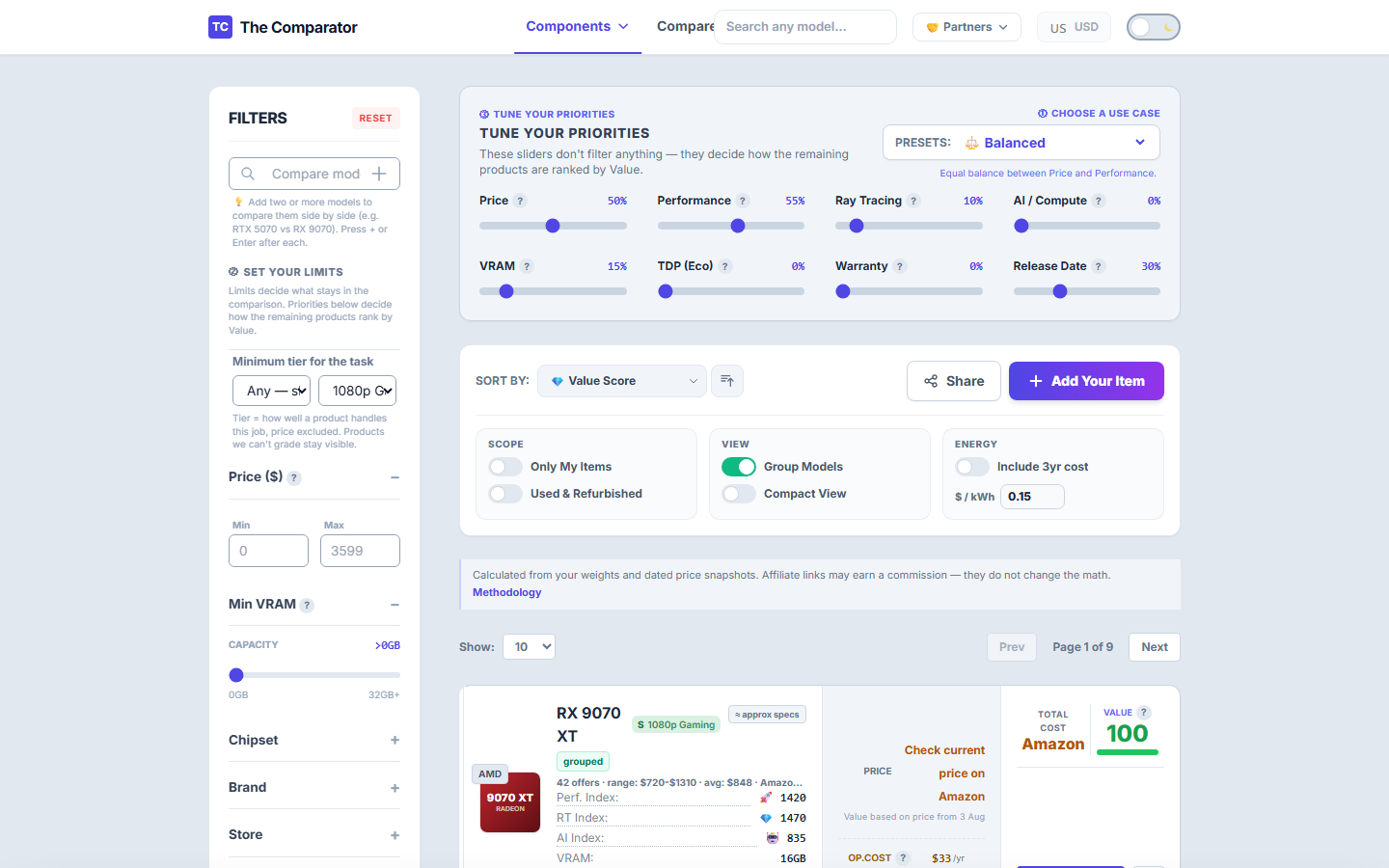
[1. Select Category] ➔ [2. Pick Task Preset] ➔ [3. Set Budget & VRAM Floor] ➔ [4. Sort by Value Score]
Step 1: Select Category & Preset
Go to the GPU Calculator or CPU Calculator. Click a Preset button at the top matching your primary goal (e.g., 🎮 1080p Budget, ⚔️ 1440p Sweet Spot, or 🤖 AI / LLM).
Step 2: Set Your Price & VRAM Limits
In the left filter sidebar:
- Adjust the Price Range Slider to set your maximum budget (e.g. max $500).
- Set the VRAM Floor (e.g.
> 12GB) to eliminate cards that will bottleneck in future titles.
Step 3: Sort by Value Score
Ensure the table header is sorted by Value Score (default view). The top item in the table represents the highest value offer on the market for your criteria.
2. Using Condition Toggles (New, Refurbished, Used)
On the toolbar above the table:
- 🟢 New (Default): Shows brand-new, factory-sealed offers from major online retailers.
- 🟡 Refurbished: Enables certified seller or manufacturer refurbished deals (typically 15-25% cheaper).
- 🔵 Show Used: Reveals second-hand marketplace listings.
3. Total Cost of Ownership (TCO Electricity Toggle)
Click the TCO Toggle on the toolbar to factor 3-year electricity costs into the deal calculation.
- Cards with high power draw (e.g. 350W+ TDP) will drop slightly in Value Score.
- Efficient cards (e.g. 160W TDP) will rise in ranking.