Pinning Cards & Adding Custom Listings
Learn how to pin your current graphics card at the top of the table and add custom used listings (eBay, Facebook Marketplace, Craigslist) for instant value comparison.
Pinning Cards & Adding Custom Listings
Two of the most powerful features in The Comparator are Pinning (fixing your existing hardware at the top) and Custom Cards (adding second-hand listings to evaluate before buying).
1. Pinning Your Current Graphics Card (📌)
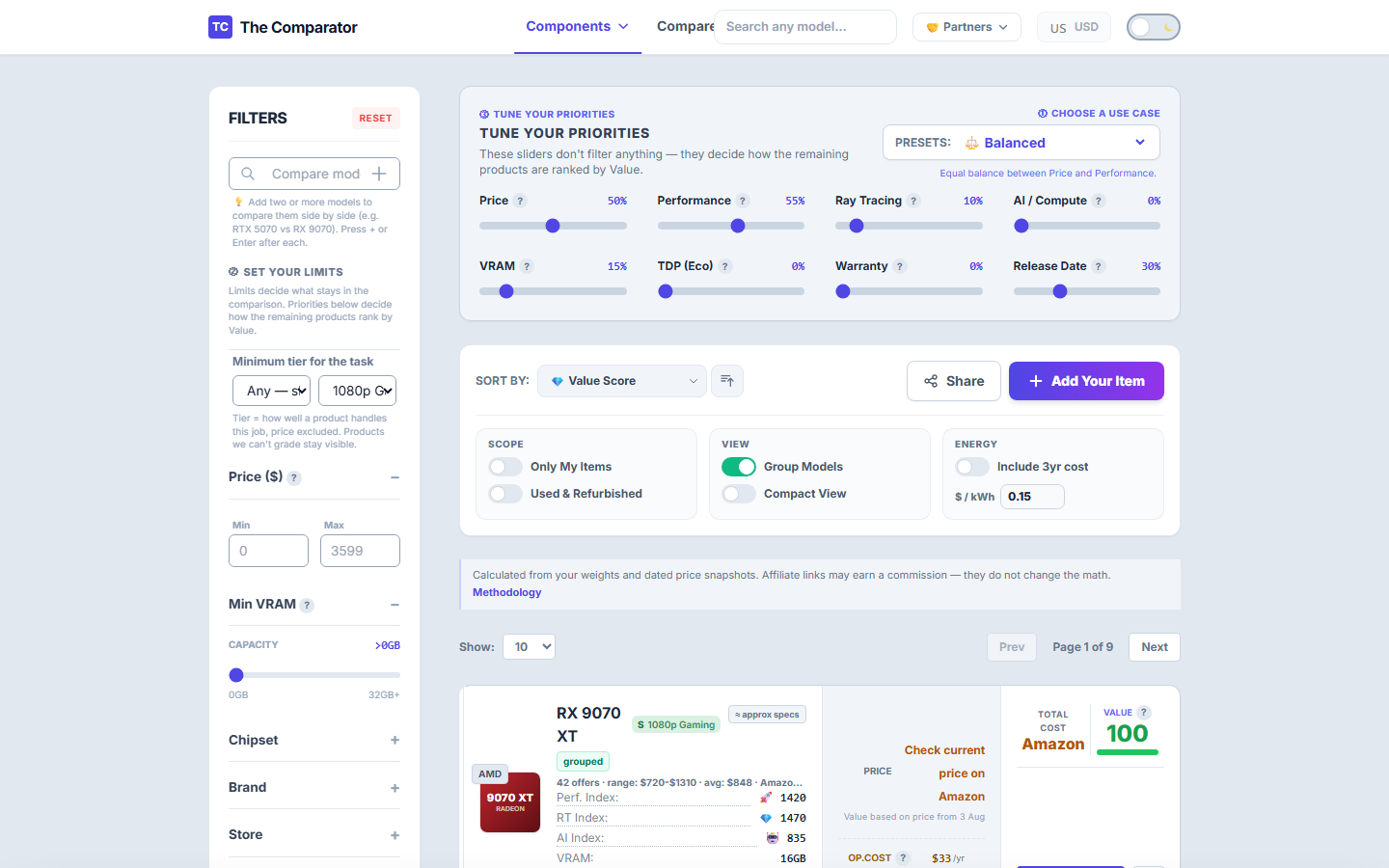
When upgrading your PC, you want to know how much better a new card is compared to the one currently inside your computer.
How to Pin a Card:
- Search for your current card in the table (e.g.
RTX 2060orGTX 1060). - Click the 📌 Pin Icon on the right side of the card row.
- The pinned card is now locked at the very top of the table with a highlighted banner.
2. Adding a Used Listing from eBay / Facebook Marketplace / Craigslist
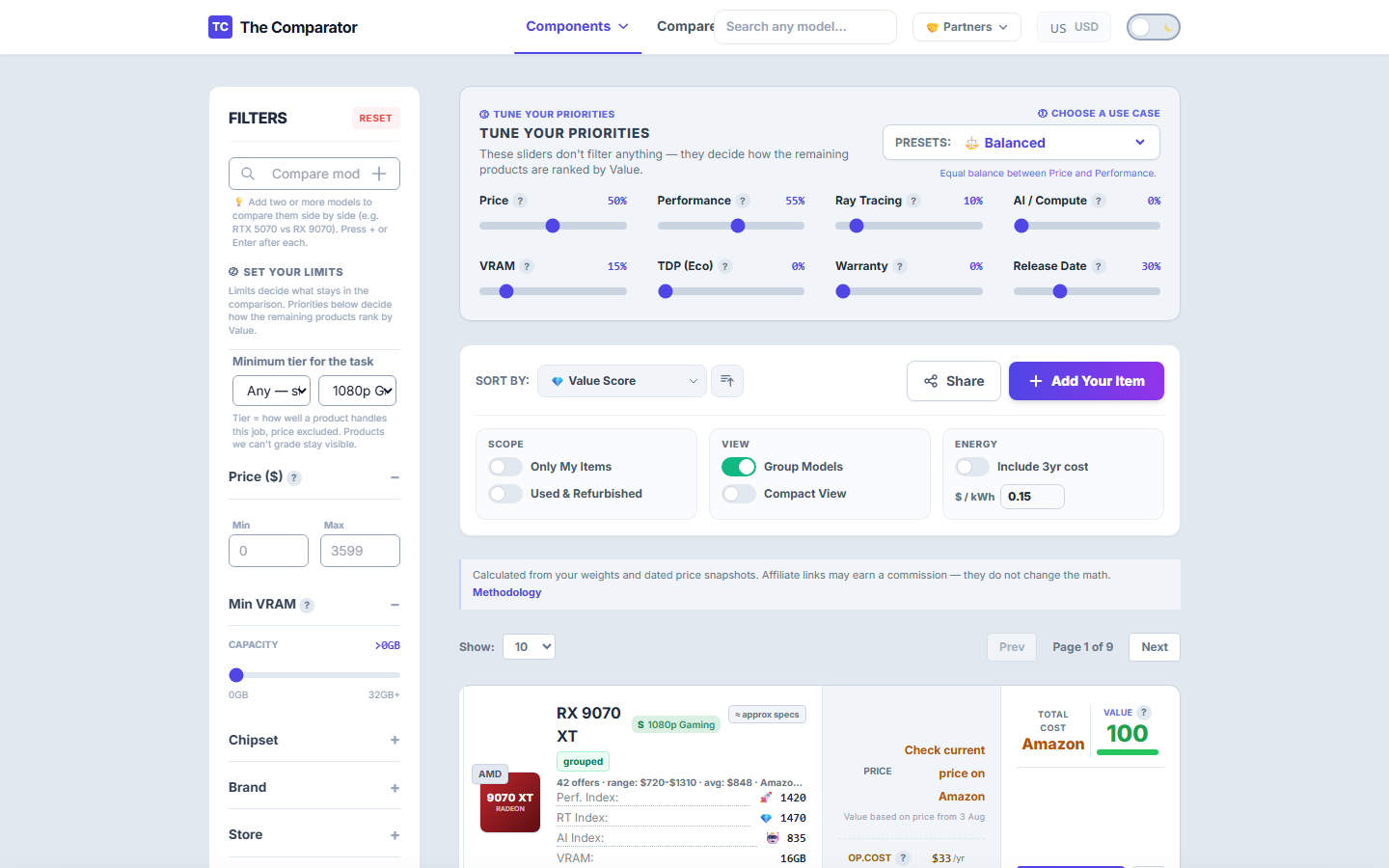
Found a used graphics card on eBay, Facebook Marketplace, or Craigslist for $250 and want to know if it’s a good deal?
How to Add a Custom Listing:
- Click the
+ Add Custom Cardbutton above the main table (or toggleShow Customin filters). - Enter the listing details:
- Reference Model: Select the GPU model (e.g.,
GeForce RTX 3070). Our database automatically populates reference benchmark scores, VRAM, and TDP! - Listing Price: Enter the seller’s asking price (e.g.,
$270). - Listing Link: (Optional) Paste the listing URL.
- Condition: Mark as
UsedorRefurbished.
- Reference Model: Select the GPU model (e.g.,
- Click Save Custom Card.
Outcome:
Your custom listing appears directly inside the table with a Custom Card badge. The engine immediately calculates its exact Value Score ($0–100$), allowing you to see if the second-hand offer beats all brand-new retail store deals!