
The Comparator does not tell you what to buy. It shows what the market offers, and you decide which trade-offs suit you. The steps below use graphics cards; processors, SSDs, memory and motherboards work the same way.
1. Choose your market
A market is the retailer prices and offers we track for one country, shown in that market’s currency. Open the country and language menu in the header and pick your country. Language and market are separate choices.
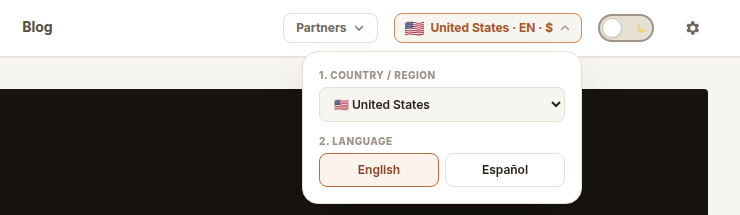
Then open a category from the Markets menu: graphics cards, processors, SSDs, memory or motherboards.
2. Remove what cannot work for you
Set the limits that are fixed first: a maximum price, a socket, DDR4 or DDR5, a case that only takes short cards, the capacity you need. Filters remove products; they do not rank them.
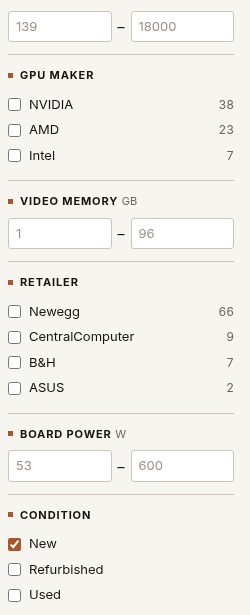
More in Filter a market.
3. Choose what matters
Under Decision tools, the Value menu holds your priorities. Each entry is a preset: Balanced, 1440p Sweet Spot, Home Server and so on. A preset is a starting point. Customize lets you change any weight, and Price only hides Value and just compares prices.
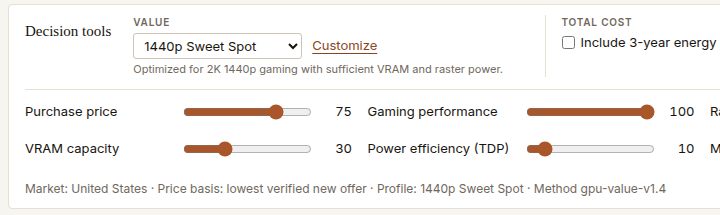
Changing your priorities changes the order of products. It never changes a product’s specifications or its grade.
4. Read capability
Capability is how well a product can do a job. The Grade column shows its S (excellent) to F grade for the capability scenario named above the table. Price and your Value priorities are not part of the grade.
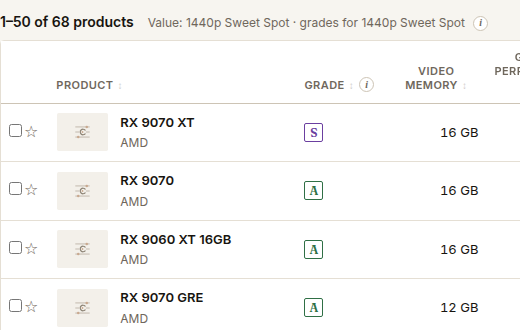
An A means the product handles this job well. It does not say the current price is good.
Use Minimum capability to keep only products that are good enough for your job.
5. Read Value
Value is how good a product’s current price is under your priorities, from 0 to 100 within the view you are looking at.
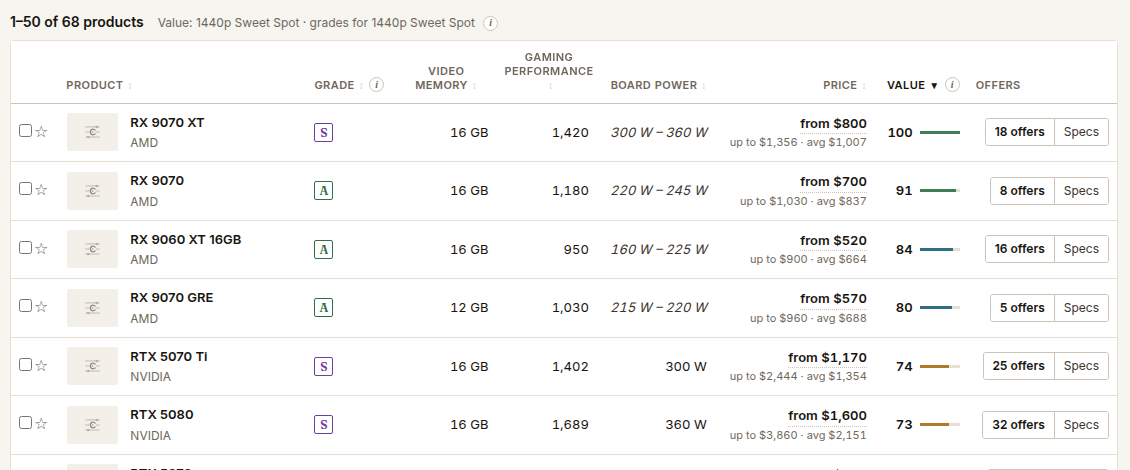
Value changes when a price or your priorities change. Sort by Value to see which of the products that are good enough is the better deal for you. More in Capability vs Value.
6. Compare finalists
Tick the products you are torn between. A bar at the bottom shows Compare (3); open it. Keep Differences only ticked and the page shows only what is different.
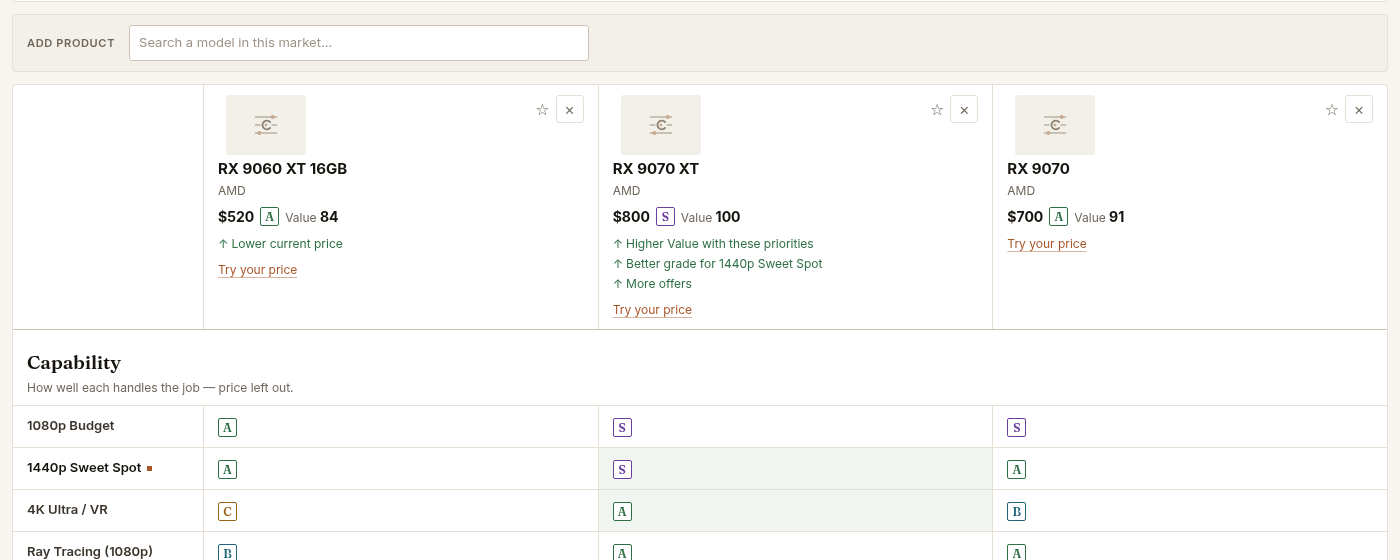
For one close pair, a head-to-head page also shows the price at which the answer would flip. See Comparing products.
7. Check the offers
Open a row’s offers to see every store that sells it: the store, the price, the condition and when it was checked.
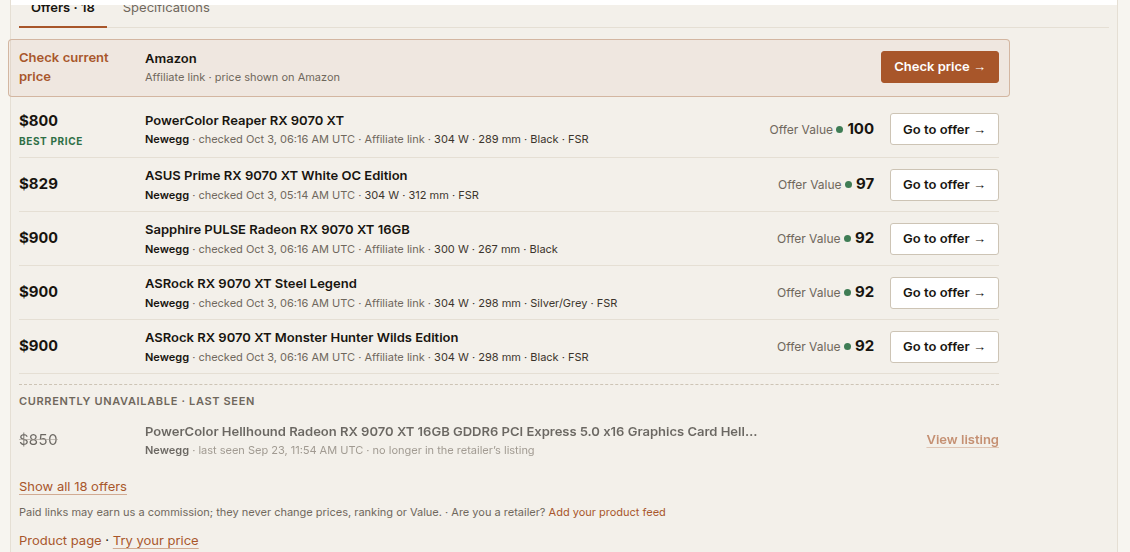
Found it cheaper somewhere else? Use Try your price. See Check a price you found.
8. Choose
At this point you have a short list, the differences between the products, current prices and the trade-offs. The final choice is yours.
Where to go next
- I have a fixed budget: Shop within a budget
- I know what it is for: Find hardware for a job
- I found a price elsewhere: Check a price you found
- I already own a part: Plan an upgrade